Home › Minecraft › Minecraft F3 Debug Screen Explained
Minecraft F3 Debug Screen Explained
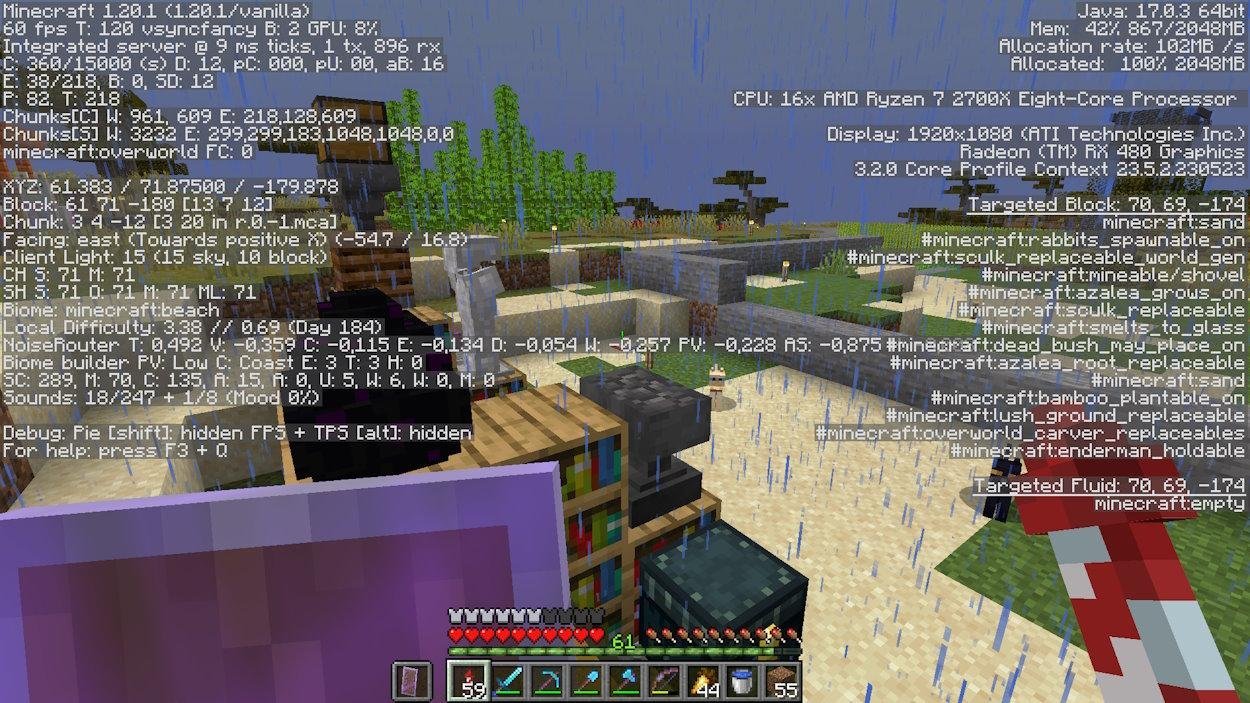
Press F3 in Java Edition and your screen fills with what looks like raw code. Most players close it immediately. That is a shame, because buried in that wall of text is the most useful information in the game: your exact coordinates, your height, the biome you are standing in, how dark it is, and the name of the block you are looking at. Here is how to read the screen like a pro, focusing on the parts that matter.
The Lines You Will Actually Use
| Line | What It Tells You |
|---|---|
| XYZ | Your exact position. X and Z are horizontal distance from world center; Y is your height, the number you need for mining levels. |
| Block | The whole-number coordinates of the block you are standing in, plus its position inside its chunk. |
| Chunk | Which chunk and region file you are in. Handy for chunk-border builds and slime chunk work. |
| Facing | The cardinal direction you face, plus your precise yaw and pitch angles for aligning builds. |
| Client Light | Total light level where you stand, split into sky light and block light. Below 1 is where monsters can spawn on the ground in most cases, so this is your mob-proofing meter. |
| Biome | The exact biome at your position, essential for structure hunting and biome-specific farms. |
| Local Difficulty | How dangerous this area has become, and the count of in-game days your world has run. |
Under all of that sits a dimension line telling you whether the game thinks you are in the Overworld, the Nether or the End, followed by technical noise values that terrain generation uses. You can safely ignore the noise block unless you are deep into world-generation research.
The Top-Left Performance Block
The first lines of the screen are about performance rather than position. They show your game version, your current FPS alongside your frame-rate cap and graphics settings, and GPU usage. Below that come rendering statistics: how many chunk sections are being drawn, your render and simulation distances, and how many entities and particles are loaded. If your game stutters, this block tells you whether the problem is the world, the entities or your settings. The simulation distance value matters for farms, too: crops, mobs and redstone only tick inside it.
The Right Side: Memory and Hardware
The right-hand column is mostly your computer talking. It lists your Java version, how much memory the game is using versus how much it is allowed, your CPU model, and your display and graphics renderer details. This is the section to screenshot when a modpack crashes or a support forum asks for your specs.
Targeted Block, Fluid and Entity
The most underrated part of the screen only appears when you look at something. Aim your crosshair at a block and the right side adds a Targeted Block section: its coordinates, its full in-game name, its block states (like a stair's facing or a crop's age), and its tags. Look at water or lava and you get the same for fluids; look at a mob and a Targeted Entity section names it precisely. Builders use this to check crop growth stages and redstone states; everyone else can finally learn that the pretty stone in the cave wall is andesite.
Useful Related Shortcuts
F3 rarely travels alone. F3 + Q prints a help list of debug combinations in chat, F3 + G draws chunk borders in the world, and F3 + H adds advanced tooltips to items, showing durability and IDs in your inventory. Master just F3 itself first; the coordinates, light level and targeted block lines alone will change how you play.
Frequently asked questions
How do I open the debug screen in Minecraft?
Press F3 on Java Edition. On some laptops you may need Fn + F3. Press it again to close the overlay.
Does the F3 screen exist on Bedrock?
No, the full debug overlay is Java only. Bedrock players can turn on Show Coordinates in world settings, which displays just the XYZ line.
Which F3 line do I need for mining?
The Y value in the XYZ line. It is your exact height, so you can stop at levels like Y=16 for iron or Y=-16 for gold without guessing.
What does Client Light mean?
It is the light level at your position, split into sky light and block light. It tells you whether the spot is dark enough for hostile mobs to spawn.
More Minecraft guides
 Redstone Components in Minecraft: A Complete GuideUpdated 12 November 2026
 Respiration Enchantment in Minecraft: Breathe Longer UnderwaterUpdated 12 November 2026
 What Does Smite Do in Minecraft? Smite Enchantment GuideUpdated 12 November 2026
 What Do Horses Eat in Minecraft? Every Food and Its EffectsUpdated 12 November 2026
 All Wolf Variants in Minecraft and Where to Find ThemUpdated 12 November 2026