Home › Minecraft › How to Play Multiplayer in Minecraft Java: LAN, Servers and Realms
How to Play Multiplayer in Minecraft Java: LAN, Servers and Realms
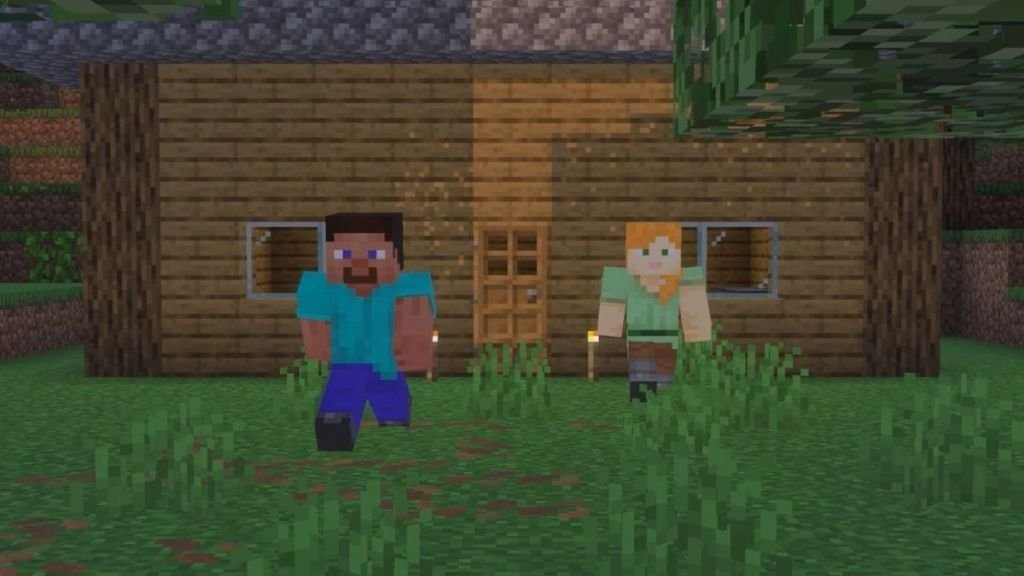
Minecraft alone is a fine game. Minecraft with friends — one person flooding the mine, another accidentally burning the storage room — is the game people remember for years. Java Edition gives you four distinct ways to play together, and the right one depends on whether your friends are in the same house, the same country, or just the same group chat.
What You Need First
- An official copy of Minecraft: Java Edition with a Microsoft account, for every player.
- A stable internet connection, and the same game version for everyone (crucial for LAN).
- For a public server: its IP address. For a Realm: an invite from the owner.
Note that Java and Bedrock use separate multiplayer systems in most cases; everything below is for Java on Windows, macOS and Linux.
Method 1: LAN — Free and Instant, Same Network
- Launch the game, choose Singleplayer, and load (or create) the world you want to share.
- Open the pause menu, go to World Options and toggle LAN on, then apply the changes.
- Your friends launch the game, click Multiplayer, and your world appears in their list automatically.
Everyone must be on the same Wi-Fi or router. The world closes when the host leaves, but for a games night in one house, nothing is faster or cheaper.
Method 2: Public Servers — Minigames and Communities
- From the main menu, click Multiplayer, then Add Server.
- Give it a name and paste the server's IP address into the address field.
- Click Done, select the server in your list, and join.
Public servers run everything from survival economies to bed wars and parkour lobbies. You can also run a server of your own with Mojang's official server software — free, but it lives on your PC and is only online while your PC is.
Method 3: The Friends Feature — Invite Directly
Java now includes a built-in friends system with peer-to-peer invites, which is simpler than running a server and doesn't need everyone on one network. Load your world, open the pause menu, click the Friends icon, search for your friend's profile name and send a friend request (the envelope icon). Once they accept, you can invite them straight into your world. Make sure the options in your Friends List are enabled — they're under Options, then Online, on the main menu.
Method 4: Realms — Your World, Always Online
Realms is Mojang's own hosting. Click Minecraft Realms on the main menu to start one (there's a 30-day free trial before the subscription kicks in) or accept an invite to a friend's. The world stays online 24/7 whether or not the owner is playing, progress is backed up, and only invited players can join. Third-party hosting services offer the same idea with more modding flexibility.
| Method | Cost | Same Network? | Online When Host Is Away? |
|---|---|---|---|
| LAN | Free | Yes | No |
| Public server | Free | No | Yes |
| Friends invite | Free | No | No |
| Realms | Subscription | No | Yes |
Which Method Should You Pick?
Match the method to the group. Same house, one evening: LAN, no contest — it takes under a minute and costs nothing. Friends scattered across the country who just want to drop into your world occasionally: the Friends invite is the least effort, though your world only exists while you're playing. A group that plays daily and builds projects that shouldn't pause when the owner logs off: that's Realms territory, or a third-party host if you want mods and plugins. And if nobody has a world yet and you want instant action, public servers deliver minigames and big community worlds with zero setup at all.
Frequently asked questions
How do I play Minecraft Java multiplayer on different networks?
Use a public server, the built-in Friends invite feature, or a Realm. LAN is the only method that requires everyone to share one network.
Is playing on LAN free?
Completely. Open your world to LAN from the pause menu and anyone on your Wi-Fi can join at no cost.
Do all players need to be online at once on a Realm?
No. Realms stay online 24/7, so invited friends can play in the world even when the owner is offline.
Can Java Edition players join Bedrock worlds?
Not natively — the editions use different multiplayer systems. Everyone in this guide is playing Java Edition on PC, Mac or Linux.
More Minecraft guides
 Redstone Components in Minecraft: A Complete GuideUpdated 12 November 2026
 Respiration Enchantment in Minecraft: Breathe Longer UnderwaterUpdated 12 November 2026
 What Does Smite Do in Minecraft? Smite Enchantment GuideUpdated 12 November 2026
 What Do Horses Eat in Minecraft? Every Food and Its EffectsUpdated 12 November 2026
 All Wolf Variants in Minecraft and Where to Find ThemUpdated 12 November 2026