Home › Minecraft › How to Install Sodium in Minecraft for Better FPS
How to Install Sodium in Minecraft for Better FPS
If Minecraft chugs on your PC, Sodium is the first mod you should try. It rewrites large parts of the game's rendering engine, and the result is dramatic: much higher frame rates, fewer stutters when new chunks load, and a world that still looks like vanilla Minecraft. Reports of FPS gains well over double are common on mid-range hardware, and it is completely free.
Before You Download
Sodium is not a standalone program. It is a mod, so you need a mod loader first: Fabric or NeoForge. Install one of those for the exact Minecraft version you play. Also read the Hardware Compatibility section on Sodium's download page before grabbing the file; a small number of very old graphics setups are not supported, and it is better to find out before troubleshooting.
Step 1: Download Sodium
Get Sodium from its official pages on Modrinth or CurseForge. Open the Files or Versions tab and choose the newest release built for your Minecraft version and your loader. A Fabric build will not work in NeoForge and vice versa, so match both details. The file lands in your Downloads folder as a single jar.
Step 2: Put It in the Mods Folder
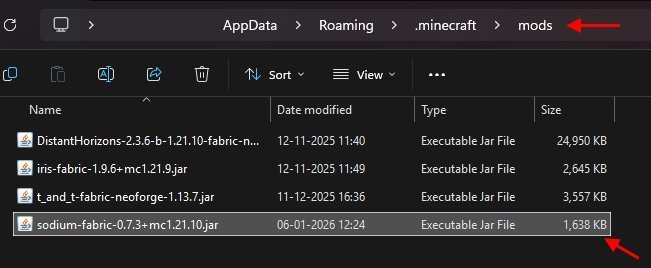
Open your .minecraft folder. On Windows, press Win + R and type %appdata%/.minecraft. Inside, find the mods folder, creating it if it is not there yet, and move the Sodium jar into it. While you are there, add Fabric API as well if you are on Fabric; many companion mods expect it, even though Sodium itself is fairly self-contained.
Step 3: Launch and Check
Open the Minecraft Launcher, make sure your Fabric or NeoForge profile is selected, and press Play. There is no mods list to inspect in the launcher, but Sodium gives itself away in game: pause, open Options and then Video Settings. If the menu looks redesigned compared with vanilla, with extra pages for quality, performance and advanced settings, Sodium is running.
Making the Most of It
Sodium pairs beautifully with a few companion mods. Lithium optimises game logic, FerriteCore trims memory use, and Iris lets you run shader packs on top of Sodium's fast renderer, which is the combination most players end up with. One honest caveat: with heavy shaders enabled, Sodium builds can hiccup a little more than OptiFine on some hardware, so test both if shaders are your priority. For plain performance without shaders, Sodium wins comfortably, and on a low-end PC it can be the difference between unplayable and smooth.
One more thing worth doing after the first launch: open Sodium's Video Settings and look at the render distance and simulation distance sliders. Sodium renders chunks far more efficiently than vanilla, so most players can push view distance several chunks higher than they are used to and still come out ahead on frame rate. If the game still feels choppy, the bottleneck has probably moved elsewhere, usually too many entities or a very heavy farm, and no rendering mod can fully hide that.
Frequently asked questions
Is Sodium free?
Yes, Sodium is free and open source. Download it only from Modrinth or CurseForge to avoid fake copies.
How much FPS does Sodium add?
It varies by hardware, but gains of up to around 185 percent are reported, with the biggest improvements on integrated graphics and older PCs.
Is Sodium better than OptiFine?
For raw frame rate, usually yes. OptiFine can be steadier with some shader packs, while Sodium plus Iris is the faster combination for most players.
Does Sodium work on Bedrock Edition?
No. Sodium is a Java Edition mod and needs the Fabric or NeoForge loader on PC, Mac or Linux.
More Minecraft guides
 Redstone Components in Minecraft: A Complete GuideUpdated 12 November 2026
 Respiration Enchantment in Minecraft: Breathe Longer UnderwaterUpdated 12 November 2026
 What Does Smite Do in Minecraft? Smite Enchantment GuideUpdated 12 November 2026
 What Do Horses Eat in Minecraft? Every Food and Its EffectsUpdated 12 November 2026
 All Wolf Variants in Minecraft and Where to Find ThemUpdated 12 November 2026