Home › Minecraft › How to Install and Use Add-Ons in Minecraft Bedrock
How to Install and Use Add-Ons in Minecraft Bedrock
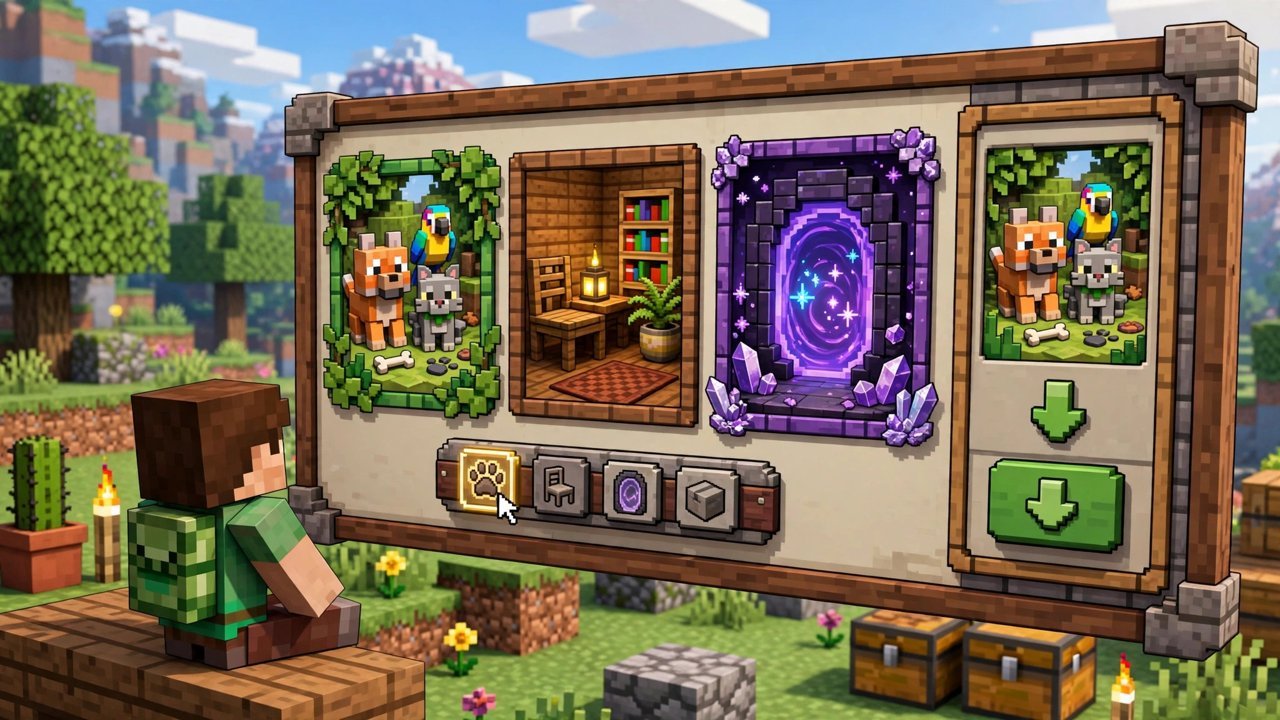
For years, modding was the one thing Java players lorded over everyone else. Add-ons ended that. They are official, Marketplace-delivered content packs that bolt new mobs, blocks, items and mechanics onto Minecraft Bedrock — and they install with menu clicks, no file managers or third-party launchers involved. Here is the whole process, start to finish.
Step 1: Find Add-Ons in the Marketplace
Add-ons do not live on a website. They are inside the game itself:
- Click Marketplace on the main menu (or from the pause menu in-game).
- Featured add-ons appear near the top of the store.
- Scroll down to the dedicated section, “Add-Ons: Apply to your own Worlds!”, and hit See All to browse the full catalog.
Step 2: Download Your Add-On
Open the add-on's page to check its creator, rating, description and price. Free add-ons show a Free button; paid ones show a Minecoin price, and if your balance is short, the game offers the closest Minecoin pack right there on the page. Buy or claim it, the button turns into Download, and one confirmation click later the pack is on your device.
Step 3: Activate It on a New World
Straight after downloading, an Activate Add-On Pack button offers to spin up a fresh world with the add-on applied. Prefer doing it manually? Create a world as normal, then before generating, scroll the left-hand settings panel to Resource Packs and Behavior Packs:
- Open either tab and find your add-on under Available.
- Click Activate.
- Check the other tab — the add-on appears as Active there too, because most add-ons ship as a behavior and resource pair.
Create the world, and the new content is live from the first spawn.
Step 4: Add It to an Existing World
Old worlds work too, with one precaution: back the world up first. Add-ons change game behavior, and a backup is your undo button. Then:
- Click the edit (pencil) button next to the world in your Worlds list.
- Scroll to Behavior Packs or Resource Packs and expand My Packs.
- Select the add-on and click Activate.
- Accept the warning popup, launch the world, and play.
Resource Packs vs Behavior Packs
The two tabs confuse everyone the first time. Resource packs change how the game looks and sounds — textures, models, music. Behavior packs change how the game behaves — new mobs, items, blocks and mechanics. A full add-on normally ships as one of each, which is why activating it in a single tab switches it on in both. If an add-on ever appears in only one tab, that simply means it only changes that half of the game.
Good to Know
- Add-ons stack. You can activate several on the same world — a furniture pack, a mob pack and a portals pack all at once — as long as they do not fight over the same mechanics.
- Removing is painless. The same pack tabs have a Remove button that detaches an add-on from a world.
- Every Bedrock platform is covered. The identical flow works on Windows, Xbox, PlayStation, Switch, Android and iOS — this is the first time console and mobile players have had first-class mod support.
Five minutes of menu work and your world can have dinosaurs, furniture or teleport portals. Start with one free add-on on a throwaway world, learn how activation feels, then go shopping.
Frequently asked questions
Where do you get add-ons for Minecraft Bedrock?
Only from the in-game Marketplace. Open Marketplace from the main menu and browse the Add-Ons section — there is no website download involved.
Do add-ons work on console and mobile?
Yes. Add-ons are an official Bedrock feature and install the same way on Xbox, PlayStation, Switch, Android, iOS and Windows.
Can you put add-ons on an existing world?
Yes. Back the world up first, then edit it, expand My Packs under Behavior Packs or Resource Packs, and activate the add-on.
Can you use several add-ons at once?
Yes, add-ons can be combined on one world. Activate each one in the world's pack settings and they will run together.
More Minecraft guides
 Sea Pickles in Minecraft: How to Get, Farm and Use ThemUpdated 12 November 2026
 What Does Smite Do in Minecraft? Smite Enchantment GuideUpdated 12 November 2026
 How to Turn On Vibrant Visuals in MinecraftUpdated 12 November 2026
 What Do Horses Eat in Minecraft? Every Food and Its EffectsUpdated 12 November 2026
 All Wolf Variants in Minecraft and Where to Find ThemUpdated 12 November 2026