Home › Minecraft › How to Fix Minecraft Exit Code 1 Error
How to Fix Minecraft Exit Code 1 Error
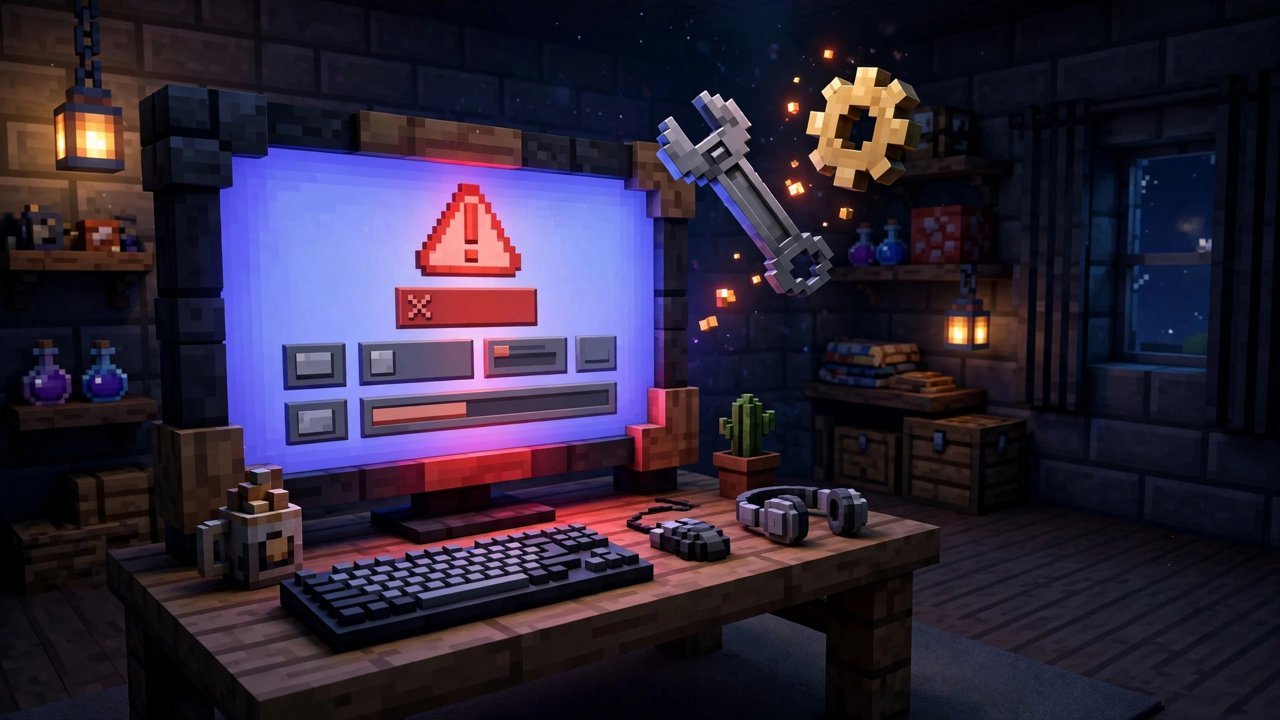
You click Play, the launcher thinks for a moment, and instead of a world you get a crash message and the words Exit Code 1. It is one of Minecraft's most common errors and one of its least informative, since a dozen different problems hide behind the same code. The good news is that the causes are well known. Work through these fixes in order and you will very likely hit yours.
What Causes Exit Code 1?
The error appears when the game crashes immediately at launch, often with a message like "An unexpected issue has occurred." The usual suspects are outdated graphics drivers, a mod that is broken or built for a different game version, and Java itself misbehaving: a corrupted install or a launcher pointing at the wrong executable.
Fix 1: Update Your GPU Drivers
Old graphics drivers are the simplest cause and the simplest cure. Download the latest driver for your graphics card from the manufacturer's official site or their companion software, install it, and try the game again before moving on.
Fix 2: Remove Troublesome Mods
If the crash started after adding mods, one of them is the prime suspect. A mod that is outdated, incompatible with your version, or simply buggy will take the whole game down. Remove mods one at a time, launching between each, until the game survives. With a large mod list, narrow it down first: open the logs folder inside .minecraft and read latest.log, which usually names the mod that was loading when everything died.
Fix 3: Check the Java Executable Path
- In the Minecraft Launcher, open the Installations tab.
- Hover over your Latest Release profile, click the three-dot menu, and choose Edit.
- Expand More Options at the bottom and find the Java Executable field.
- Click Browse and navigate to your Java install, by default under C:\Program Files (x86)\Java\ in the bin folder.
- Select java.exe. If the field currently points to javaw.exe, that is very likely your bug; swap it, save, and relaunch.
Fix 4: Reinstall Java
If the path looks right but Java still misbehaves, remove it cleanly. Uninstall Java through Programs and Features in the Control Panel, download the correct version for your system from the official Java website, and reinstall. This clears out corrupted files that a path fix cannot.
Fix 5: Change the Launcher's Working Directory
A strange Windows username can break the launcher's default paths. Right-click the Minecraft Launcher shortcut, open Properties, and in the Shortcut tab append --workDir %ProgramData%.minecraft to the end of the Target field. Apply, and launch again.
If all five fixes fail, the problem may sit deeper in your PC, so it is worth checking your hardware health and, as a last resort, reinstalling Minecraft itself after backing up your worlds.
Preventing Exit Code 1 in Future
Once you are back in the game, a little hygiene keeps this error away. Update mods in batches rather than all at once, so a bad update has fewer suspects, and keep a clean vanilla profile in the launcher for testing whether a crash is mod-related at all. Let your GPU driver software notify you about updates instead of disabling them, and back up your worlds before big changes like Java reinstalls or modpack overhauls. None of this is exciting, but ten minutes of it is cheaper than another evening staring at a crash code.
Frequently asked questions
What is the Minecraft Exit Code 1 error?
It is a generic launch crash: the game closes immediately and reports Exit Code 1 instead of loading. The message text varies, but the code always means the launch failed.
Can mods cause Exit Code 1?
Yes, very often. A mod that is outdated, built for another Minecraft version, or buggy will crash the game at startup. Removing mods one at a time finds the culprit.
What is the difference between java.exe and javaw.exe here?
If your launcher profile points at javaw.exe, changing it to java.exe in the installation's Java Executable field is a known fix for this error.
None of the fixes worked. What now?
Reinstall Minecraft after backing up your saves, and check that your PC's components and drivers are healthy. Deeper system issues can produce the same error code.
More Minecraft guides
 Redstone Components in Minecraft: A Complete GuideUpdated 12 November 2026
 Respiration Enchantment in Minecraft: Breathe Longer UnderwaterUpdated 12 November 2026
 What Does Smite Do in Minecraft? Smite Enchantment GuideUpdated 12 November 2026
 What Do Horses Eat in Minecraft? Every Food and Its EffectsUpdated 12 November 2026
 All Wolf Variants in Minecraft and Where to Find ThemUpdated 12 November 2026