Home › Minecraft › How to Make a Free Minecraft Server for Java and Bedrock
How to Make a Free Minecraft Server for Java and Bedrock
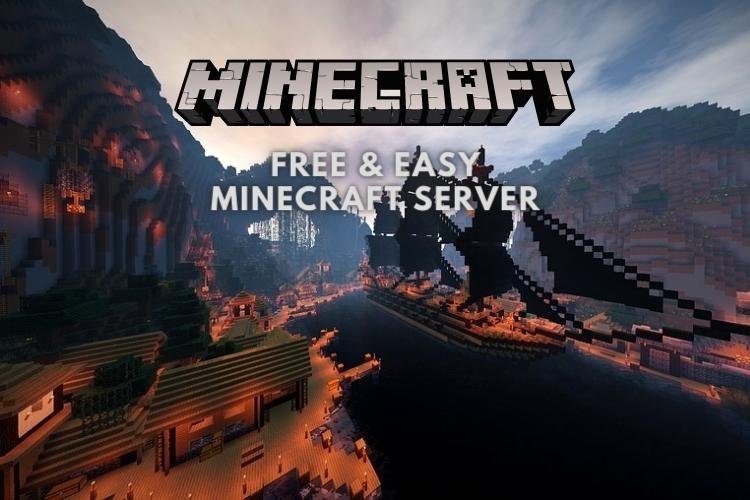
Running your own Minecraft server used to mean port forwarding, batch files and a PC left on all night. Free hosting services removed all of that. They run the server on their machines, give you a control panel in the browser, and charge nothing — the catch is simply that your server only wakes up when you ask it to. For a world shared between friends, that trade is usually worth it. This guide builds a server on Aternos, the best-known free host, and the same steps map closely onto alternatives like Minehut, PloudOS, Server.pro and FalixNodes.
Why Use a Free Host Instead of Your Own PC?
A hosted server stays online even when your computer is off, nobody needs your home IP address, and there is nothing to install or configure by hand. The limitations are real but predictable: free servers shut down a few minutes after the last player leaves, you may wait in a short queue at peak times, and heavy modpacks can outgrow the free hardware. For vanilla survival and light plugin setups, they are more than enough.
Step 1: Create Your Aternos Account
- Open the Aternos website and click Play.
- Sign up with a username and password (or a Google/Facebook login), accept the terms, and finish the captcha.
- Adding an email address is optional but smart — it is your only password-recovery route.
Step 2: Create the Server
- Click the big Create a server button.
- Choose Java Edition or Bedrock Edition. You can switch later, but pick the edition your group actually plays.
- Use the pencil icons to rename the server and write a welcome message, then click Create.
- Press Start. First boot can take a few minutes while the world generates.
Step 3: Settings Worth Changing Before Anyone Joins
- Options: set the game mode and difficulty, and decide whether players can fly (you will want flight off in survival).
- Players: turn on the whitelist and add your friends' exact usernames. On a free public-looking address, this is your main griefing defence.
- Software: leave this alone unless you know you want Paper or a specific version — changing it can reset parts of your setup.
- Worlds: already have a world you love? Upload it here as a .zip instead of starting fresh, and download backups from the same screen.
Step 4: Joining the Server
- On the server page, check the server version matches your game version, then copy the server address (it ends in .aternos.me).
- Make sure the server shows as started, then open Minecraft and go to Multiplayer → Direct Connection.
- Paste the address, click Join Server, and give it a minute.
Share the address with friends and they follow the same steps. Remember the server must be started from the panel each session — most groups make one person the designated "server starter."
Two Errors Everyone Hits Eventually
Connection timed out: usually the server was still booting, or the plain address is being stubborn. In the panel, click Connect to reveal the port-based address (it looks like yourserver.aternos.me:12345) and join with that instead.
"You are not whitelisted on this server": the whitelist is on and that username is not on it. Add the exact in-game name under Players → Whitelist — one typo is all it takes.
The Free-Host Reality Check
Free servers are generous, but they are not permanent infrastructure. Download a world backup from the panel every so often, keep the player count sensible, and expect a queue on weekend evenings. If your group outgrows it, the world file you downloaded can move to a paid host or a home server intact — nothing you build is locked in.
Frequently asked questions
Is Aternos really free?
Yes. Creating and running a server costs nothing and no card is required. The service is funded by ads on its website, and the trade-offs are that servers stop when empty and you may queue briefly at peak times.
Why does my free Minecraft server keep turning off?
Free hosts shut servers down a few minutes after the last player leaves to save resources. Someone with panel access has to press Start again before the next session — this is normal behaviour, not a fault.
Can Java and Bedrock players use the same free server?
A single Aternos server is created for one edition or the other. True cross-play needs a Java server running a cross-play plugin such as Geyser, which Aternos supports installing, but a plain server is Java-only or Bedrock-only.
How do I fix 'connection timed out' on a free server?
First make sure the server has fully started in the panel. If it has, use the port-based address from the Connect button (address plus :port) in Direct Connection instead of the short address.
More Minecraft guides
 When Did Minecraft Come Out? Full Release TimelineUpdated 12 November 2026
 Where to Find Frogs in Minecraft: All Three VariantsUpdated 12 November 2026
 6 Best Uses of Wind Charge in MinecraftUpdated 12 November 2026
 6 Best Uses of Wither Roses in MinecraftUpdated 12 November 2026
 All Wolf Variants in Minecraft and Where to Find ThemUpdated 12 November 2026